How to Get macOS Notifications from Claude Code
Set up native macOS notifications for Claude Code so you know when a task finishes or when input is needed — using a custom app bundle and terminal-notifier.
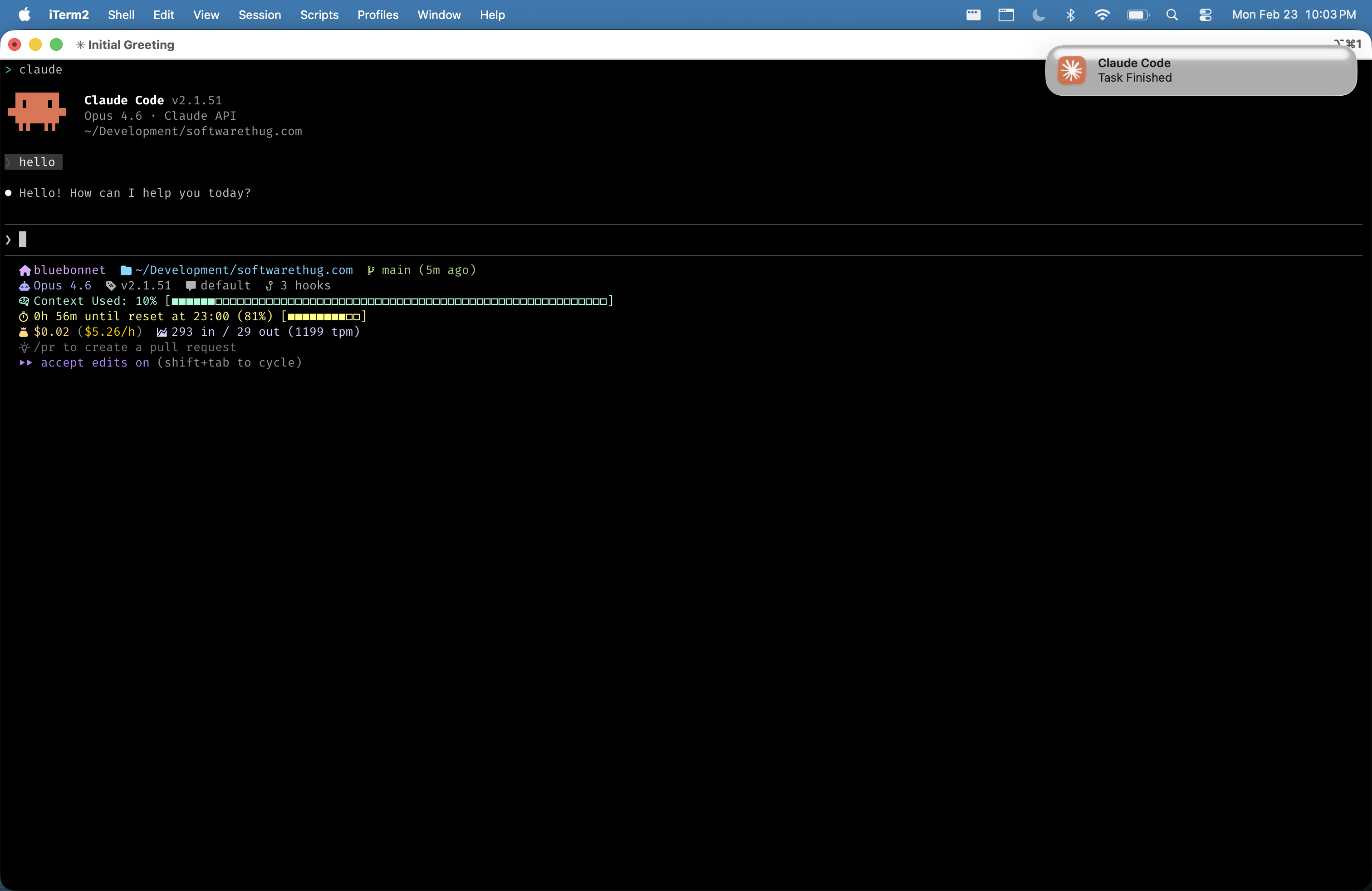 A native macOS notification from Claude Code.
Claude Code can churn away for minutes at a time, and if you’ve switched to another window, you have no idea it’s done. Here’s how to get native macOS notifications with a custom Claude icon using a minimal app bundle called ClaudeNotify.
Install terminal-notifier
terminal-notifier sends native macOS notifications from the command line:
1
brew install terminal-notifier
Create ClaudeNotify.app
This is a minimal macOS app bundle that exists solely to give your notifications a Claude icon. Create the directory structure:
1
mkdir -p ~/.claude/ClaudeNotify.app/Contents/{Resources,MacOS}
Add a dummy executable (macOS requires one to register the app):
1
2
3
4
5
cat > ~/.claude/ClaudeNotify.app/Contents/MacOS/ClaudeNotify << 'EOF'
#!/bin/bash
exit 0
EOF
chmod +x ~/.claude/ClaudeNotify.app/Contents/MacOS/ClaudeNotify
Create the Info.plist:
1
2
3
4
5
6
7
8
9
10
11
12
13
14
15
16
17
cat > ~/.claude/ClaudeNotify.app/Contents/Info.plist << 'EOF'
<?xml version="1.0" encoding="UTF-8"?>
<!DOCTYPE plist PUBLIC "-//Apple//DTD PLIST 1.0//EN"
  "http://www.apple.com/DTDs/PropertyList-1.0.dtd">
<plist version="1.0">
<dict>
    <key>CFBundleIdentifier</key>
    <string>com.claude.notify</string>
    <key>CFBundleName</key>
    <string>Claude Code</string>
    <key>CFBundleIconFile</key>
    <string>icon</string>
    <key>CFBundleExecutable</key>
    <string>ClaudeNotify</string>
</dict>
</plist>
EOF
Copy the icon from the Claude desktop app:
1
2
cp /Applications/Claude.app/Contents/Resources/electron.icns \
   ~/.claude/ClaudeNotify.app/Contents/Resources/icon.icns
Register the app with macOS (it opens and immediately exits — that’s expected):
1
open ~/.claude/ClaudeNotify.app
Configure the Hooks
Add this to ~/.claude/settings.json to fire notifications on Claude Code’s Stop and Notification lifecycle events:
1
2
3
4
5
6
7
8
9
10
11
12
13
14
15
16
17
18
19
20
21
22
23
24
25
26
{
  "hooks": {
    "Stop": [
      {
        "matcher": "",
        "hooks": [
          {
            "type": "command",
            "command": "terminal-notifier -message \"Task Finished\" -title \"Claude Code\" -sound default -sender com.claude.notify"
          }
        ]
      }
    ],
    "Notification": [
      {
        "matcher": "",
        "hooks": [
          {
            "type": "command",
            "command": "terminal-notifier -message \"Needs Your Input\" -title \"Claude Code\" -sound Basso -sender com.claude.notify"
          }
        ]
      }
    ]
  }
}
The -sender com.claude.notify matches the bundle ID from our Info.plist, which is what gives the notification the Claude icon.
Troubleshooting Icon Caching
macOS caches notification icons aggressively. If you don’t see the Claude icon, force re-registration:
1
2
3
/System/Library/Frameworks/CoreServices.framework/Frameworks/LaunchServices.framework/Support/lsregister -f ~/.claude/ClaudeNotify.app
killall NotificationCenter
open ~/.claude/ClaudeNotify.app
If it still doesn’t appear, a logout/login or reboot will fix it. Also make sure your terminal app has notifications enabled in System Settings > Notifications.